Use Translation
Translation Feature Guide
This system features a powerful real-time translation engine designed to break language barriers, enabling seamless communication between agents and global customers.
1. Setting Up Language Environment
Before using the translation feature, please confirm and set your current language environment:
- Locate the "Avatar" icon in the bottom-right corner of the window.
- Click the avatar and select "Switch Language" from the menu.
- Choose your preferred language (e.g., Japanese).
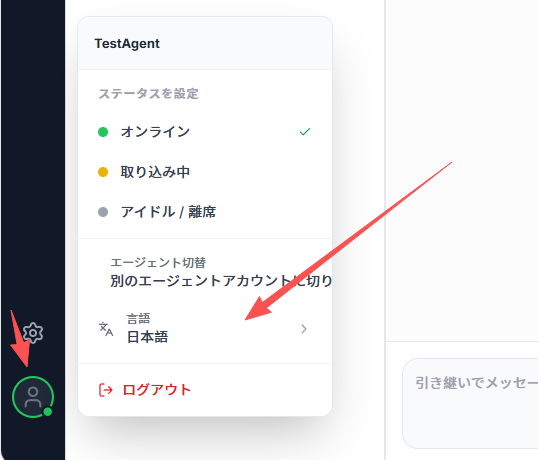
Demo Tip: If you switch your language to Japanese, the system will automatically set Japanese as the target language for future translations.
2. Enabling Real-time Translation
We support translation across 9 common languages. To enable it:
- Open any chat window.
- Find and click the "Translation Button" in the toolbar.
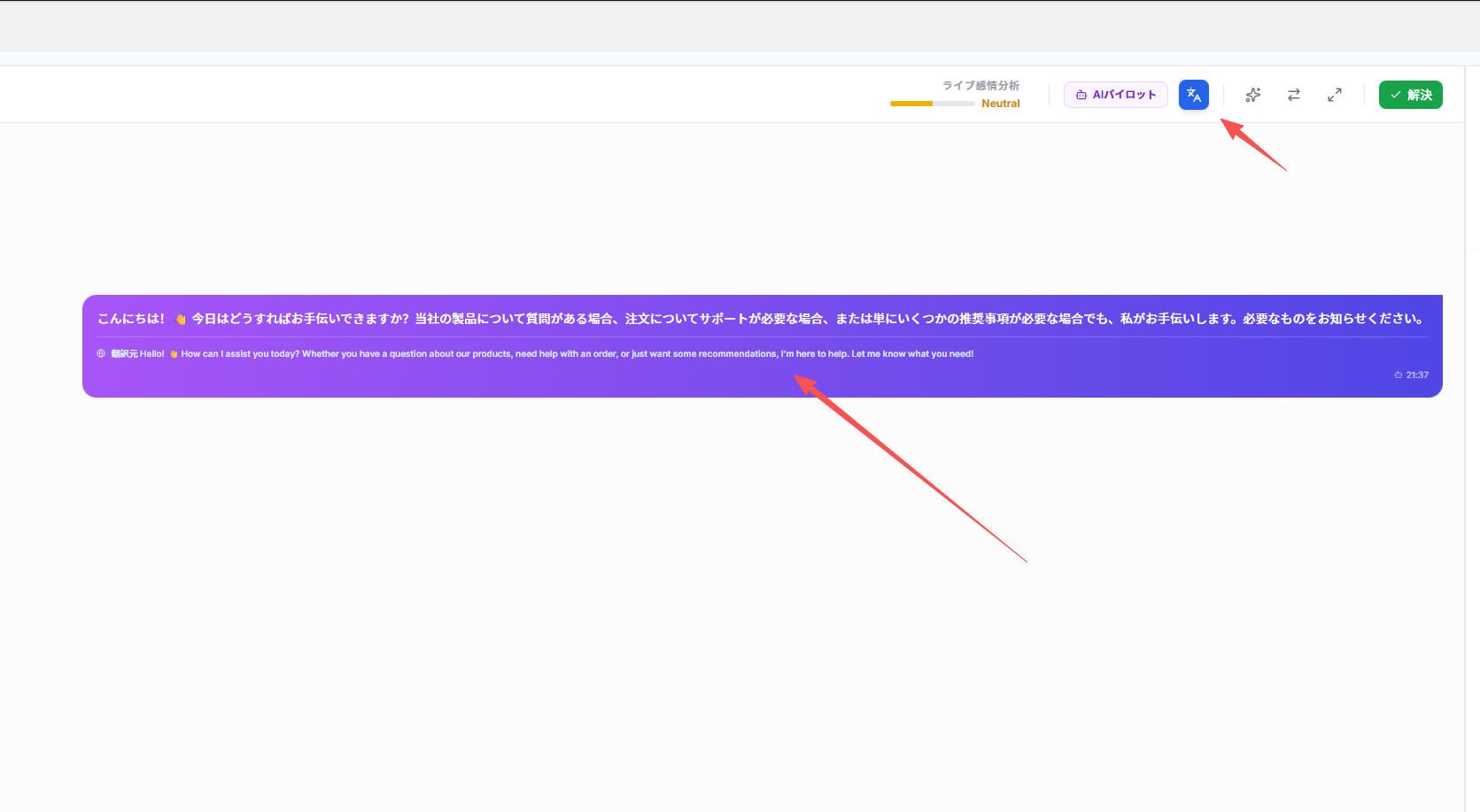
- Once enabled, messages from both the Customer (User) and the AI Agent will be translated into your set language in real-time.
3. Translation Display
To ensure communication accuracy, the system uses a "Translation + Original" comparison display mode:
- Top Display: The translated text.
- Bottom Display: The Original Message, allowing you to verify the content at any time.
4. Customer-side Translation
The translation feature is bidirectional:
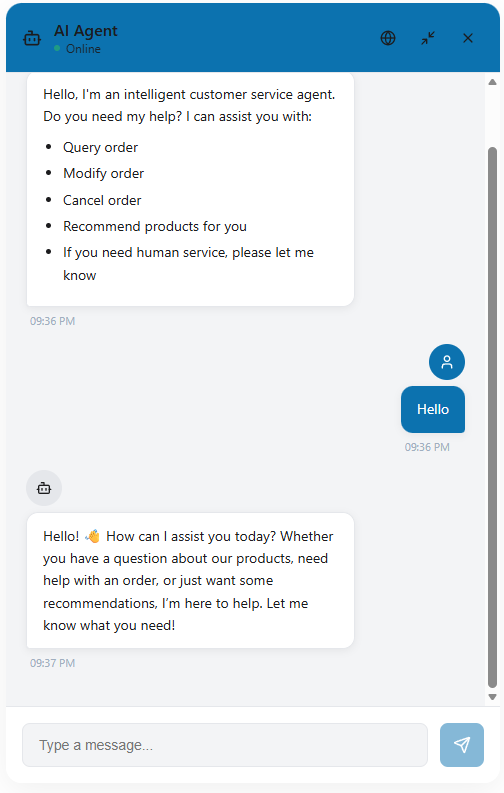
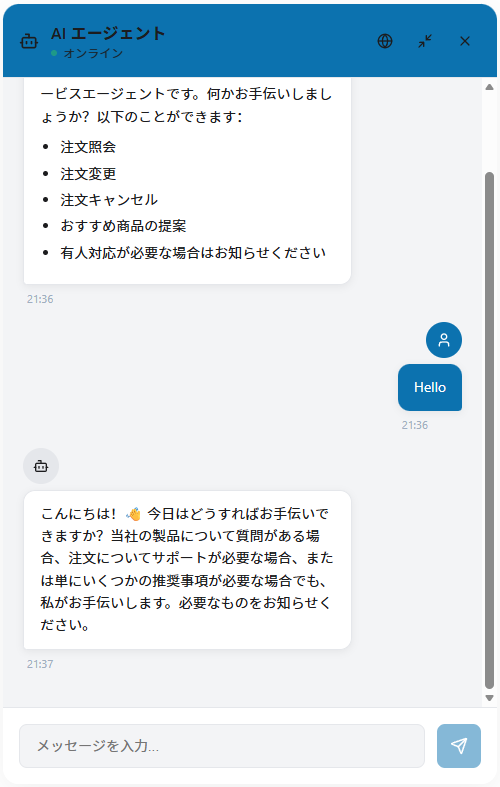
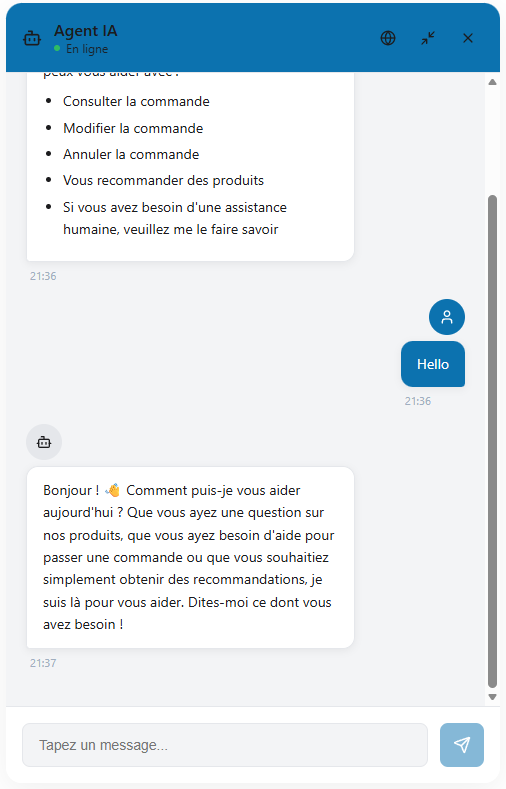
- In the Customer Chat Window, the system will also translate agent or AI replies into the customer's corresponding language based on their language environment.
- This ensures a smooth and barrier-free communication experience for the customer as well.